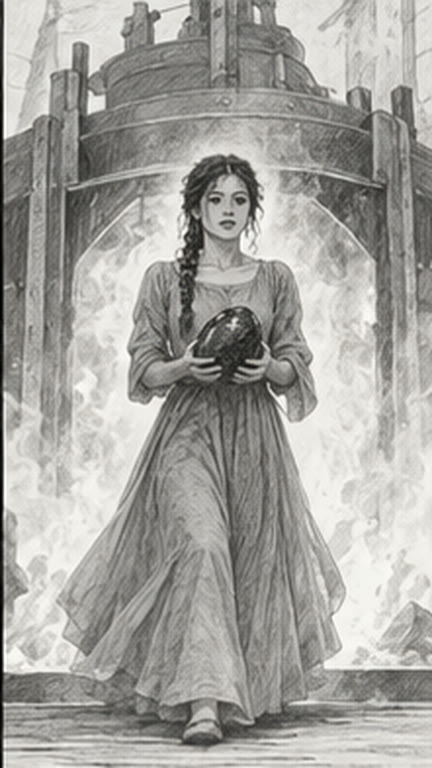
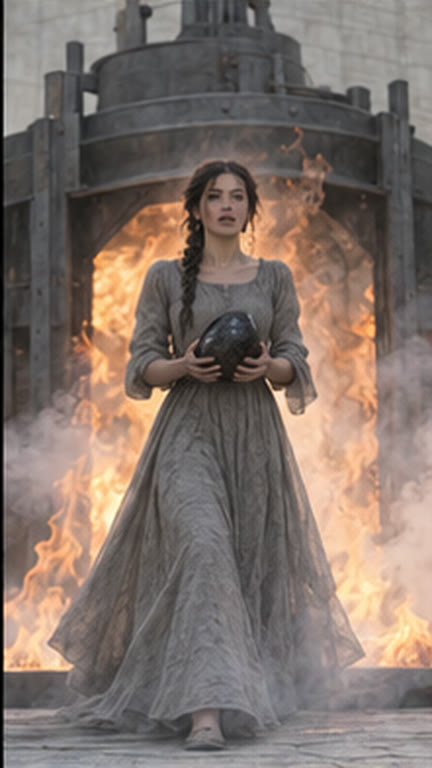
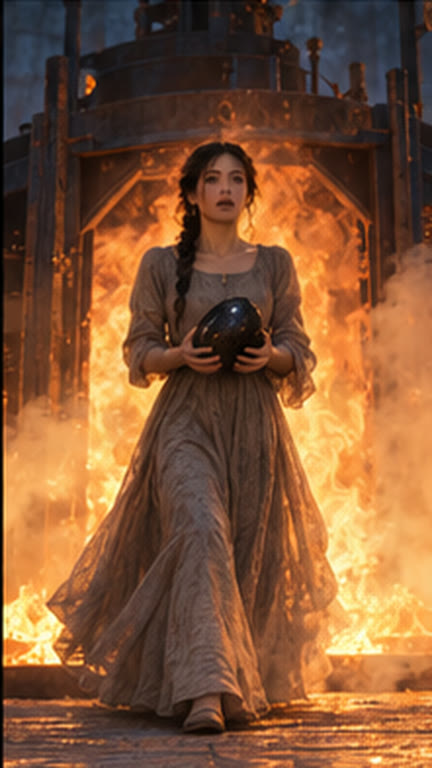
A staged frame with its references and camera direction, to CineShoot
Step
3 of 9
What CineStaging does
01
The same faces in every shot
Attach character, wardrobe, location and prop references to a shot once. Every shot in the scene draws from the same set, so a character doesn’t change between angles.
IonaCharacter
VeyraCharacter
Furnace gateLocation
Dragon eggProp
02
Camera, lens and light, decided early
Set the angle, the lens, the move and the lighting for each shot, and see the staged frame before a second of video is paid for.
Board
Staged
Final
03
AI or live, shot by shot
Mark each shot for the render queue or for the camera. Cinerama suggests which way to go: faces and dialogue usually shoot live, worlds and effects usually render.
Scene 02 · How each shot is made
2A
Out of the fire · 35mm, low angle, slow dolly
AI
2B
Veyra’s warning · 85mm two shot
Live
2C
The mark on her wrist · macro insert
AI
2D
Iona’s reaction · 85mm close-up
Live
Concept panels with sample projects. Layouts in the studio may differ.
How it works
01
Attach the references
Build each shot with the same character, set, prop and wardrobe references used across the scene.
Iona · Furnace steps · Dragon egg
02
Set camera and light
Specify framing, lens, movement and lighting for the shot, then review how those choices read in the frame.
35mm · Low angle · Slow dolly · Firelight
03
Send the shot to CineShoot
Hand over the staged frame, camera direction and visual references together.
Shot 2A · Staged frame and camera notes
What you get A staged frame with reference assets and camera direction.
Tools in CineStaging
Built into the stage, with nothing to connect.
Cinerama DirectorReads your script and breaks it into scenes and shots, plans the coverage and writes the prompt for every shot.
Uses credits
Where it sits
Nine stages, one episode. CineStaging works on its own, and it also picks up what the stage before it made.
No. Every shot can be marked live, and the staged frame, lens and lighting notes become the instructions for the crew. A series can be all live, all generated or a mix.
Can I use CineStaging without the other stages?
Yes. Every Cine stage works on its own, on Free for one series, and on every paid plan, where all nine stages are open.
Is there a free plan?
Yes. Free includes all nine stages on the first season of one series, up to three episodes, for as long as you like, with 100 starter credits to try every model.
Can I use my own AI accounts?
Yes, on every paid plan. Connect your own key for any model or provider; that work is billed by them and uses no Cinerama Credits.
Start with CineStaging. Add the rest when you need it.
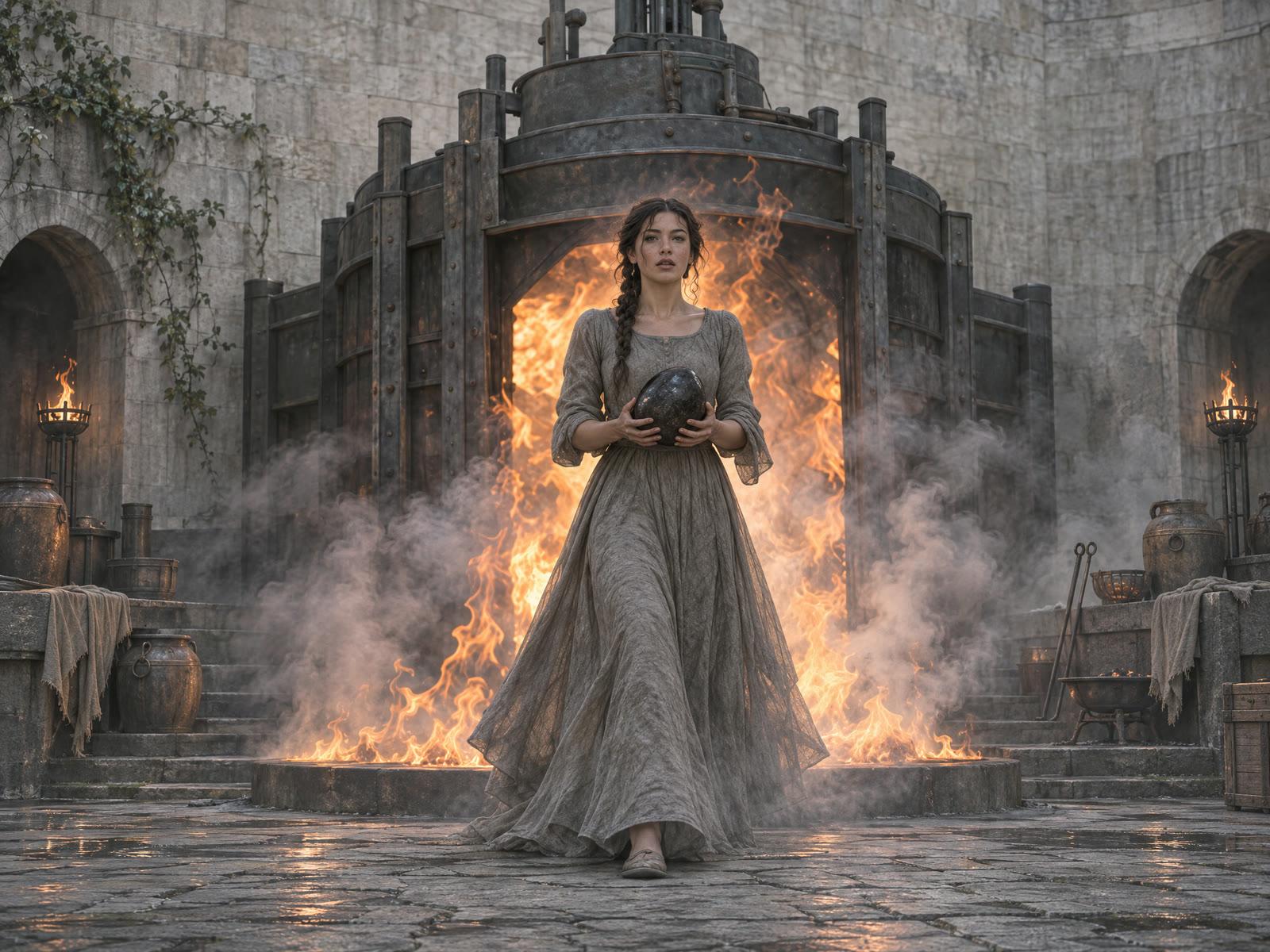
 IonaCharacter
 VeyraCharacter
 Furnace gateLocation
 Dragon eggProp